Getting Started with Sameness
Sameness is a tool for creating brand guidelines that both people and AI can understand.
You write your brand guidelines once. Sameness publishes them as a website for your team and as structured files that AI tools like ChatGPT, Claude, and Figma can use.
Once your brand context is ready, you can also enable Brand Assistant. It helps your team find brand information, make brand decisions, and evaluate work against your guidelines.
Create your account and workspace
When you sign up, Sameness asks for your name, organization, role, and job title.
Your organization is the account that your brand and teammates belong to. If you create the organization, you become its Owner.
If someone invited you to an existing organization, you will join their organization instead.
Next, enter your brand name. You can change this later in Settings.
Sameness will then create your Brand Workspace.
Explore the demo brand first
Your new workspace starts with a complete demo brand.
It includes colors, fonts, logos, assets, Guides, pages, and other example content. This lets you explore Sameness and see what a finished brand workspace looks like before building your own.
You can edit the demo, publish it, and try different features.
When you’re ready to start building your own brand, go to Overview and click Replace Default Brand.
This removes the demo content and cannot be undone.
Learn how your workspace is structured
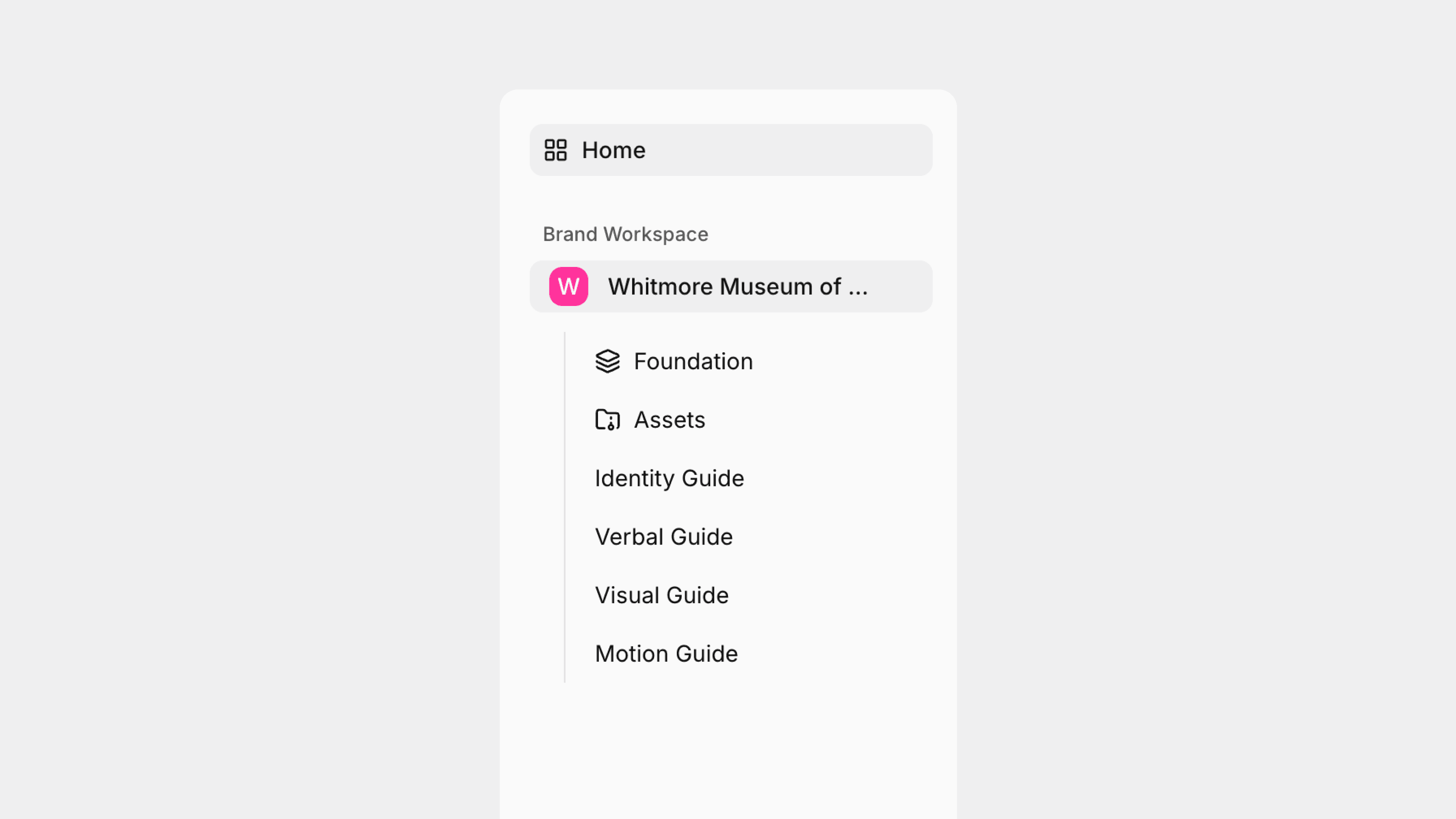
Your Brand Workspace is where your brand guidelines, assets, and brand context live.
It has five main parts:
Part | What it holds |
|---|---|
Foundation | Your brand colors, fonts, logos, and motion settings |
Assets | Your brand files, stored in one place |
Guides | Pages where your brand guidelines are organized |
Blocks | The building pieces used to create each Guide |
Exports | Files and connections that let AI tools use your brand context |
Start with your Foundation
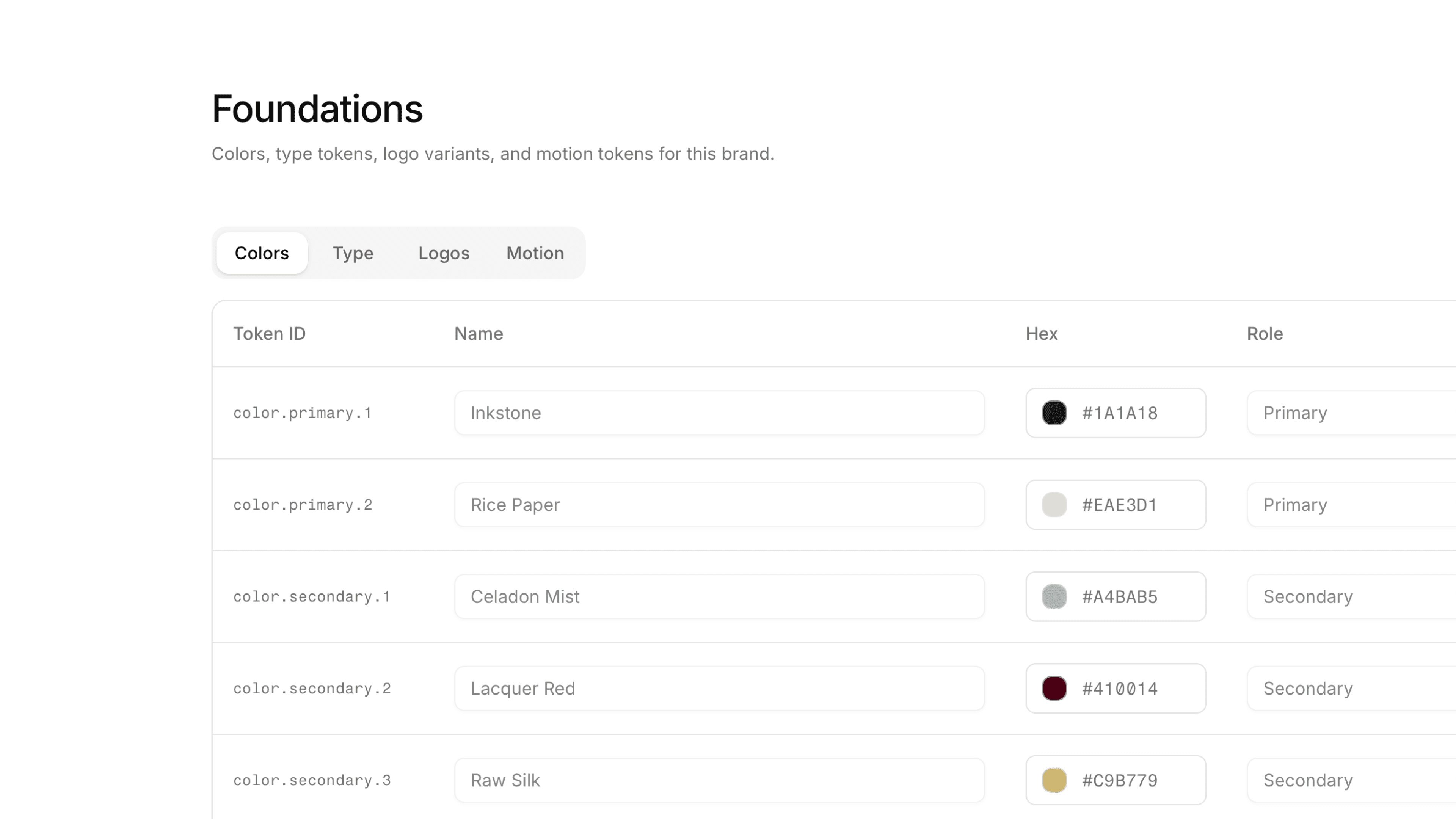
Foundation stores the basic parts of your brand, including colors, fonts, logos, and motion settings.
Foundation should be the first thing you set up.
These values are used throughout your Brand Workspace. For example, when you add a color to Foundation, you can use it in your Color Palette, gradients, and exports.
Set up your Foundation first, then move on to your Guides.
Learn more about Foundations ->
Build your brand guidelines
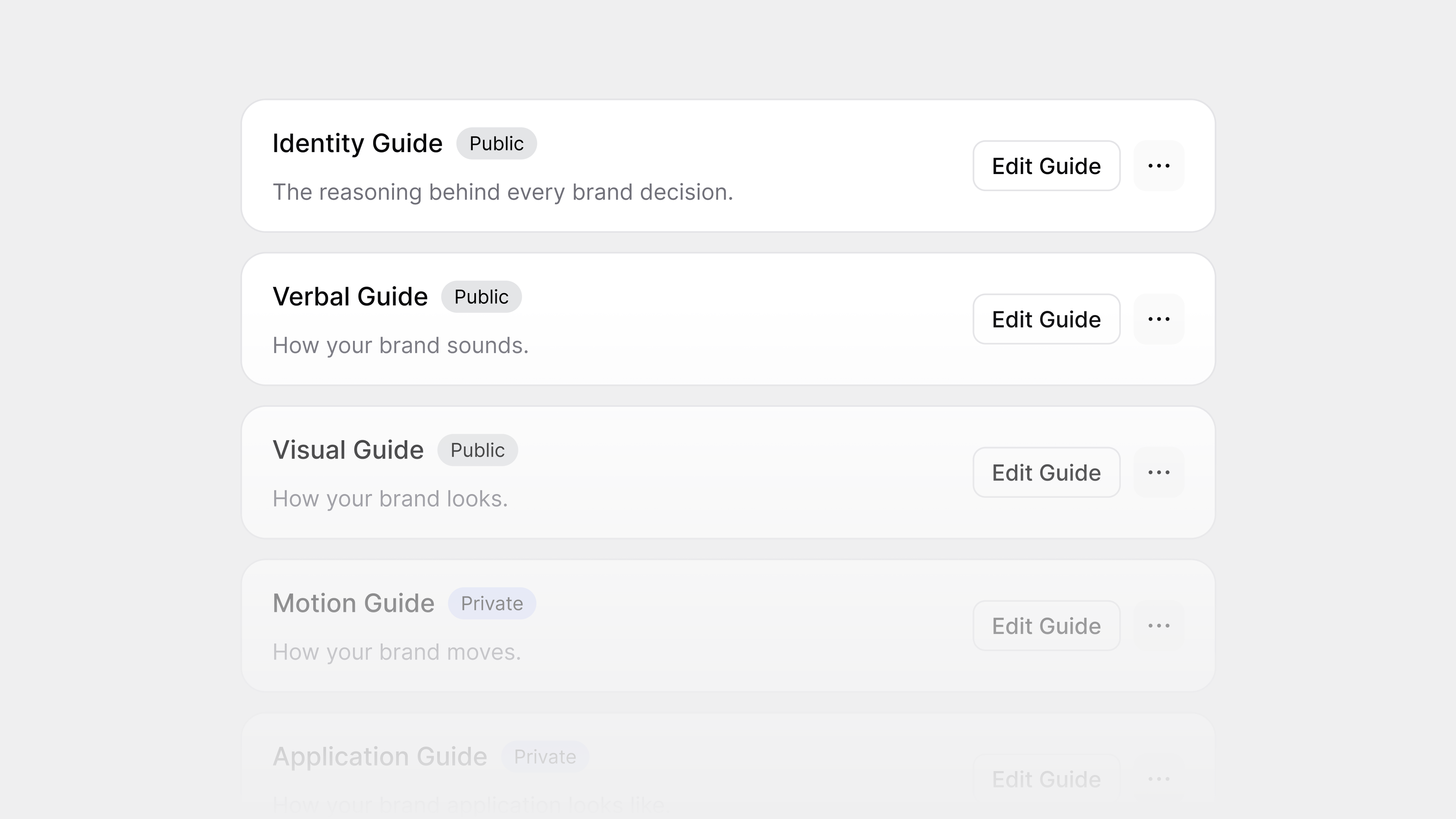
Guides are where you write and organize your brand guidelines. Each Guide covers a different part of your brand.
Every Brand Workspace starts with five Guides:
Guide | What it covers |
|---|---|
Identity | Your brand strategy, including purpose, positioning, personality, and values |
Verbal | How your brand communicates, including voice, tone, audiences, and writing examples |
Visual | Your logo, color, typography, imagery, and other visual rules |
Motion | How your brand moves and behaves in motion |
Application | Examples of how your brand is applied to real work, such as social posts, posters, and presentations |
The Identity, Verbal, Visual, and Motion Guides have a fixed structure. You can add your own pages, but the system pages cannot be deleted or reordered.
The Application Guide is flexible. You can add, rename, reorder, and delete its pages to match the type of work your brand creates.
Disable system pages
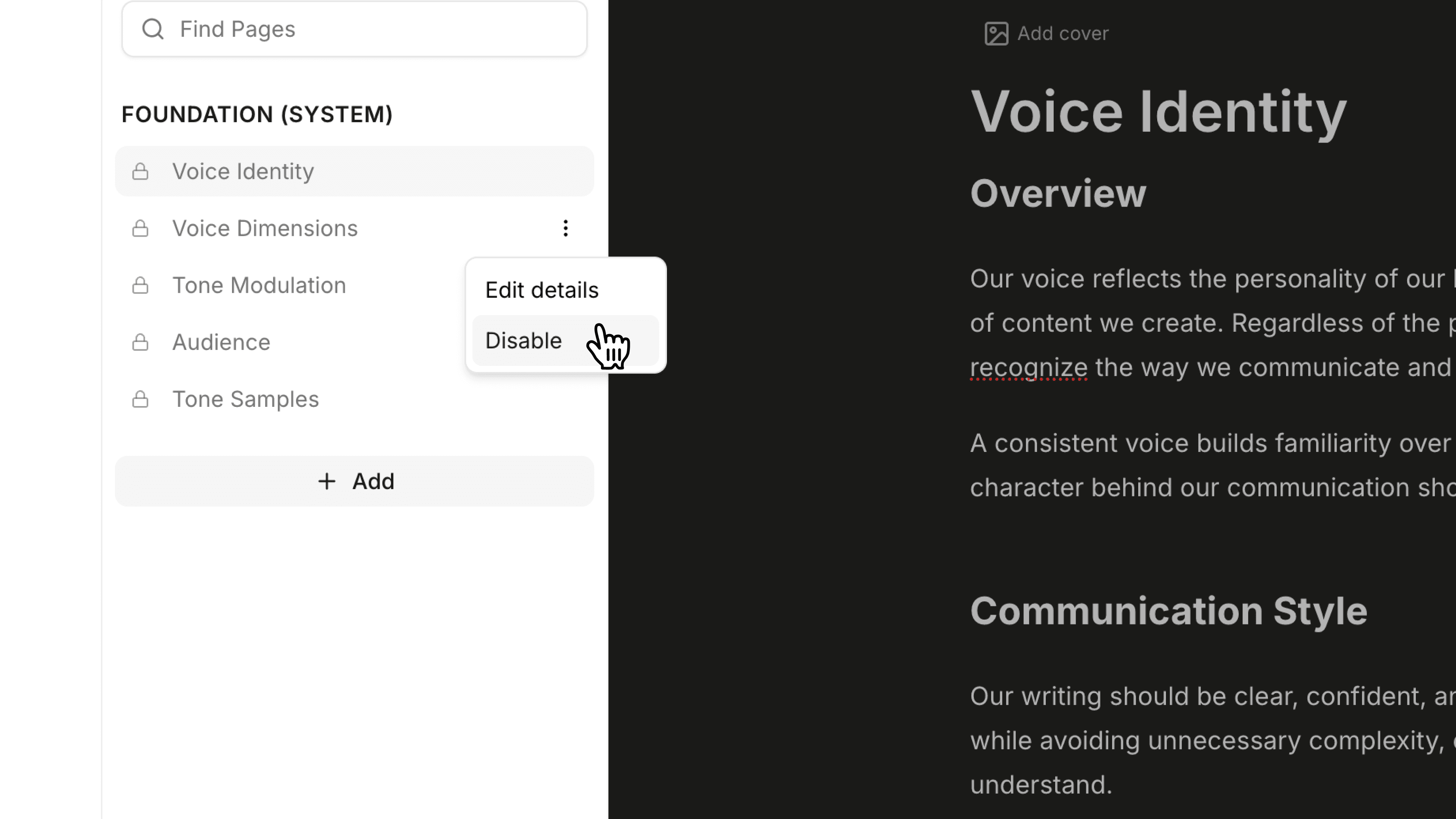
If a system page does not apply to your brand, you can disable it from the ••• menu.
For example, if your brand does not use gradients, you can disable the Gradient page. Disabled pages are hidden from your published guidelines and removed from your JSON exports.
Add content with Blocks

Blocks are the pieces used to build pages inside your Guides. There are three types of blocks you can add:
Type | What it does |
|---|---|
Basic | Adds content such as headings, text, images, videos, prompts, and dividers |
Downloads | Adds files that people can view or download |
References | Adds real examples of your brand, such as imagery styles, finished applications, audio, and video |
You will also see Context Blocks throughout your Guides.
Context Blocks are built into Sameness and collect structured information about your brand. For example, the Color Palette block stores your brand colors, while the Voice Identity block stores information about how your brand communicates.
Fill in these blocks to build the structured brand context used by Sameness and your exports.
Use your brand context with AI
Everything you add to your Brand Workspace can be turned into files that AI and other tools can read.
Export | What it is for |
|---|---|
brand.md | Your complete brand context in one text file |
design-tokens.json | Your brand values, such as colors and typography, in a structured format |
Page Markdown | A text version of a single page |
MCP Connector | Gives supported AI and design tools live access to your brand context |
The MCP Connector can connect your brand context directly to tools such as Claude, ChatGPT, Codex, VS Code, and Figma.
Publish your brand guidelines
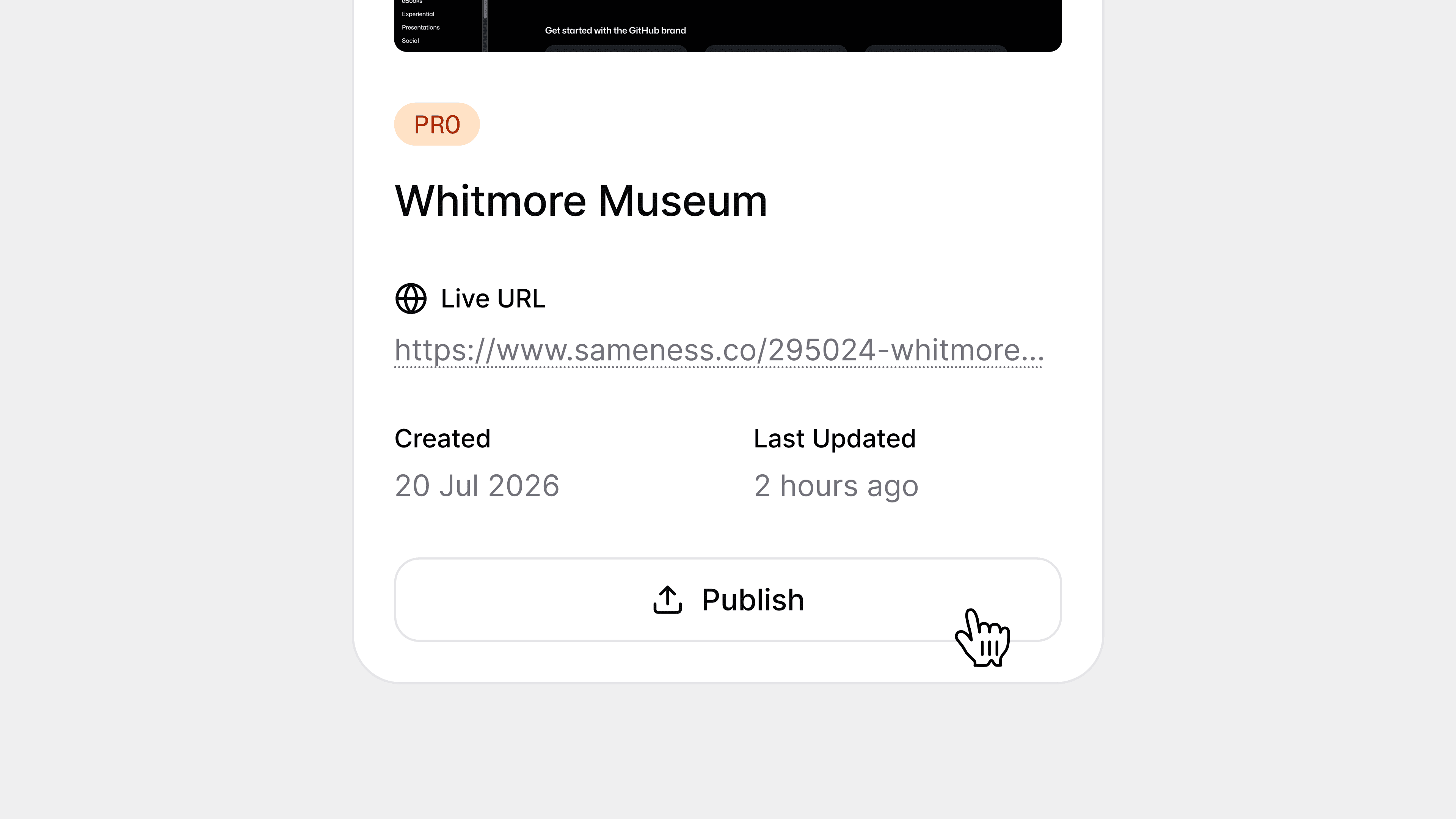
Your Brand Workspace can also be published as an online brand portal for your team.
Go to Overview to see your published site, web address, Guides, and other workspace information.
This gives people a place to read your guidelines while your exports and connections make the same brand context available to AI tools.
Enable Brand Assistant
Once your brand context is ready, go to Settings and enable Brand Assistant.
Brand Assistant appears directly inside your published brand portal. Your team can use it to ask questions about the brand, find information, make brand decisions, and evaluate work against your guidelines.
The more complete your brand context is, the more information Brand Assistant has to work with.
Invite your teammates
Owners and Admins can invite other people to the organization.
Go to Members, enter their email address, choose a role, and send the invitation.
Role | Access |
|---|---|
Owner | Full access to the organization |
Admin | Can manage the brand and team, except for changing the Owner |
Member | Can read and edit brand content but cannot manage the team |
Everyone in an organization works on the same brand.
Each organization holds one brand. If you need another brand, create another organization and switch between them using the same Sameness account.
Your recommended workflow
Explore the demo brand.
Replace the demo when you’re ready.
Set up your Foundation.
Fill in your Guides and add relevant assets and references.
Publish your guidelines and connect your AI tools.
Enable Brand Assistant once your brand context is ready.
Invite your team and start using the brand workspace together.